Admin UI
The web interface for operating a realm: switching it on, who sees what, and where to serve it.
The admin UI is a web interface for realm administrators and developers. It is a client of the Admin API and nothing more: it can do nothing the CLI can’t, and every call it makes is authenticated, network-checked and audited by the server like any other. This page is the start of its guide; each area of the interface (users, keys, secrets, audit, functions, data, configuration) is added to it as the area ships.
The interface is bundled in the backd binary and the release images. Nothing is loaded from anywhere else: no CDN, font, icon or script from another origin.
Switching it on
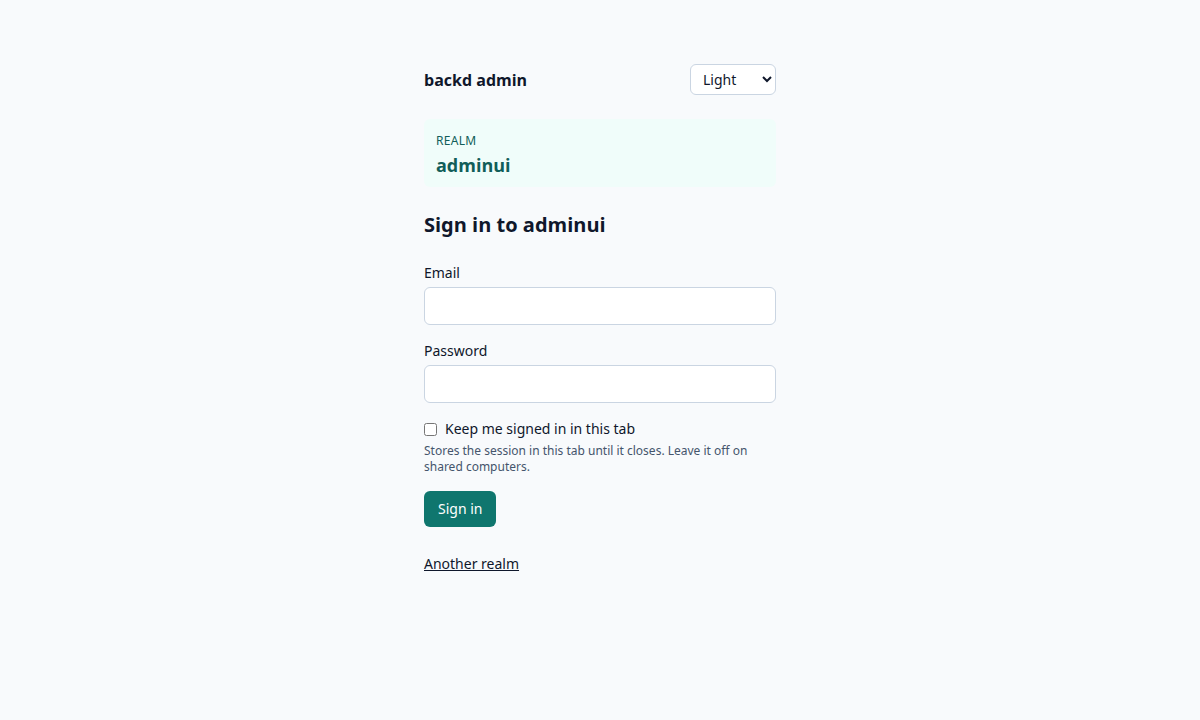
It is off by default. Set BACKD_ADMIN_UI=true on the instance that should serve it:
docker run -e BACKD_ADMIN_UI=true … ghcr.io/fernandezvara/backd:vX.Y.Z serve
Open https://<your backd>/_ui/, enter the realm’s name and sign in with an administrator’s email and password. The address carries the realm, /_ui/r/<realm>/…, so a link opens the same realm for whoever follows it; the realm is always shown at the top of the page, because an administrator works in one realm at a time.
The UI needs the admin API on the same instance: BACKD_ADMIN_UI=true with BACKD_ADMIN_API=false is a startup error. A binary built from source without the UI (go build without running make ui first) starts, logs a warning, and answers 404 at /_ui/.
| Variable | Default | Purpose |
|---|---|---|
BACKD_ADMIN_UI | false | Serves the interface at /_ui/ |
BACKD_ADMIN_UI_IDLE | 30m | Signs the administrator out, and revokes the session on the server, after this long without activity |
Who sees what
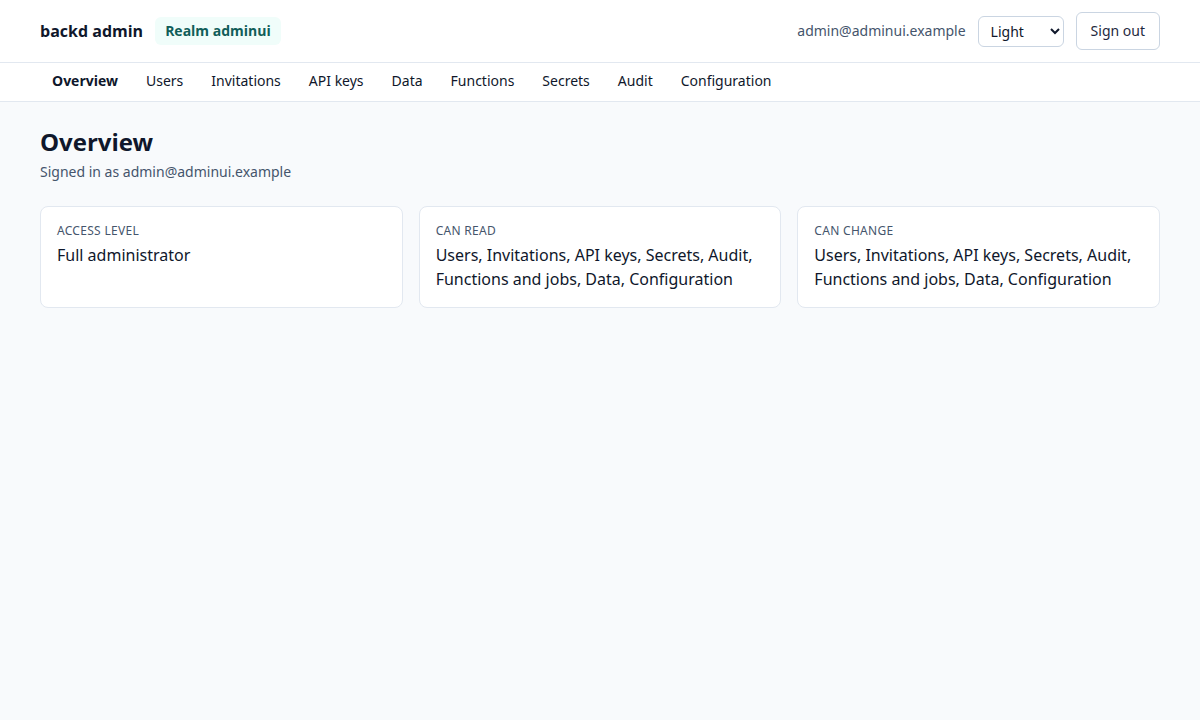
Signing in needs a user with one of the realm’s admin roles; a user without one is refused, and their session is ended at once. After sign-in the UI asks the server what the account may do (GET /_admin/whoami) and shows only that: a read-only administrator sees no buttons that change anything, and admin.read_access decides whether they see users and data. The server enforces every permission anyway; the interface only avoids offering what would be refused.
The overview page lists the level (full, read-only or custom) and the areas the account may read and change.
Users and invitations
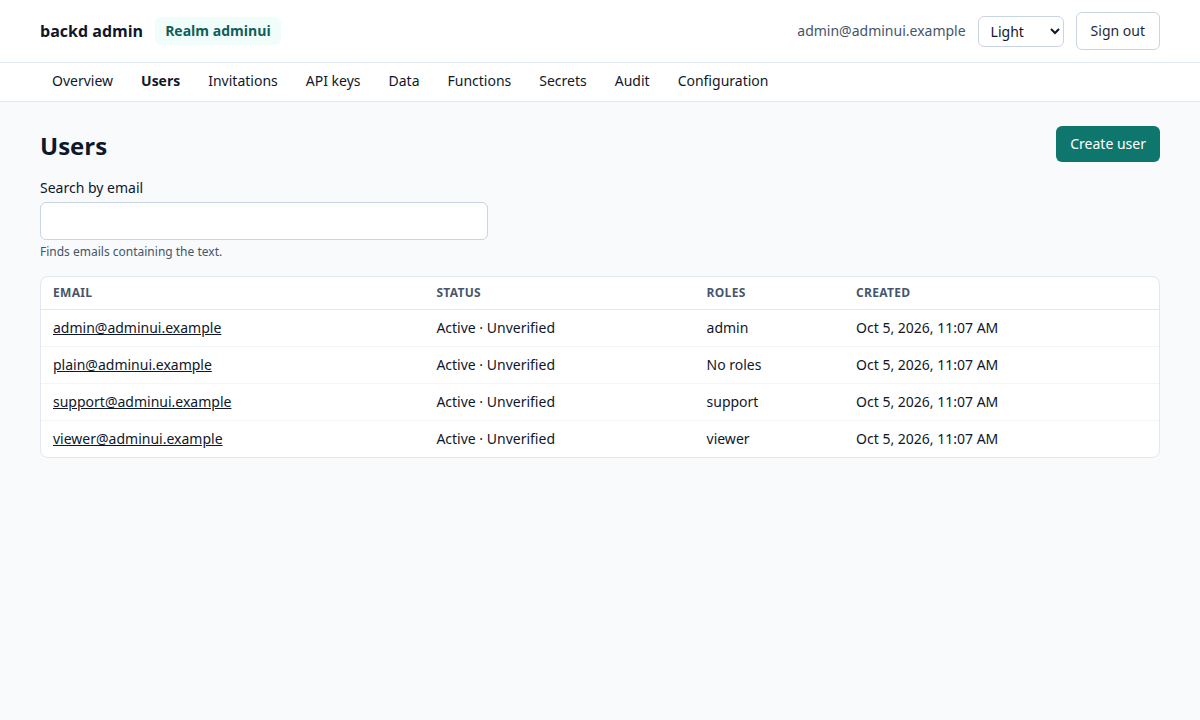
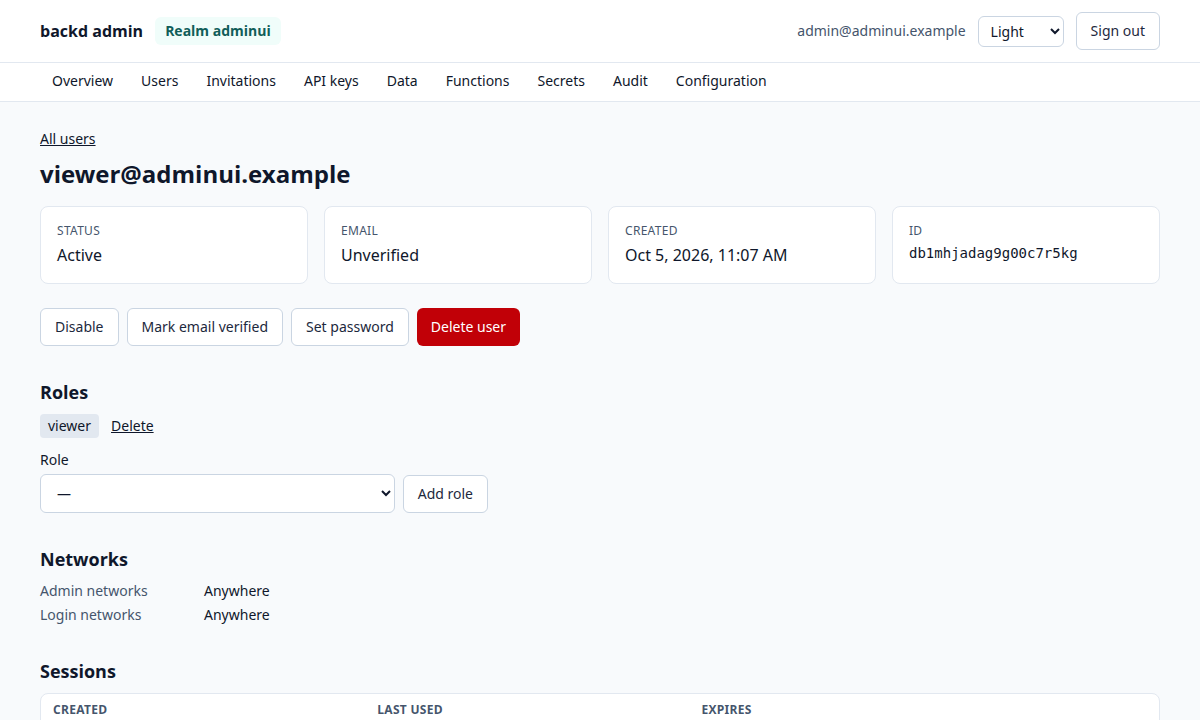
The Users page lists the realm’s users, a page at a time, and searches by email as you type. Opening a user shows their status, whether the address is verified, the roles they hold, their networks and their active sessions (never a token). With the users area an administrator can also:
- create a user, with or without a password (without one they can’t sign in until a password is set);
- disable or enable them (disabling ends their sessions), mark the address verified, set a password (which ends their sessions) and change the email (offered only when the realm sends email, because both addresses are told);
- add and remove roles, from the roles
realm.yamldeclares. An assignment thatrealm.yamldoesn’t list for that user is marked only in the database: a rebuilt realm wouldn’t have it. Reading which roles are declared and seeded needs theconfigarea; without it the role is typed by name and the server checks it; - revoke a session: its token stops working at once;
- delete the user: the dialog first shows what they own in every collection with a policy, and asks for the user’s email to be typed before it erases. Erasing is irreversible; disabling keeps the data.
Invitations lists the pending ones (who they are for, who created them, when they expire). Creating one shows its token once, to copy; Email an invitation has backd send it (offered only when the realm sends email); Revoke asks for the word to be typed.
A read-only level sees the Users page only when the realm’s admin.read_access.users grants it, and then without any control that changes something. The same holds for every area: a control appears only when whoami says the level may use it.
API keys, secrets and audit
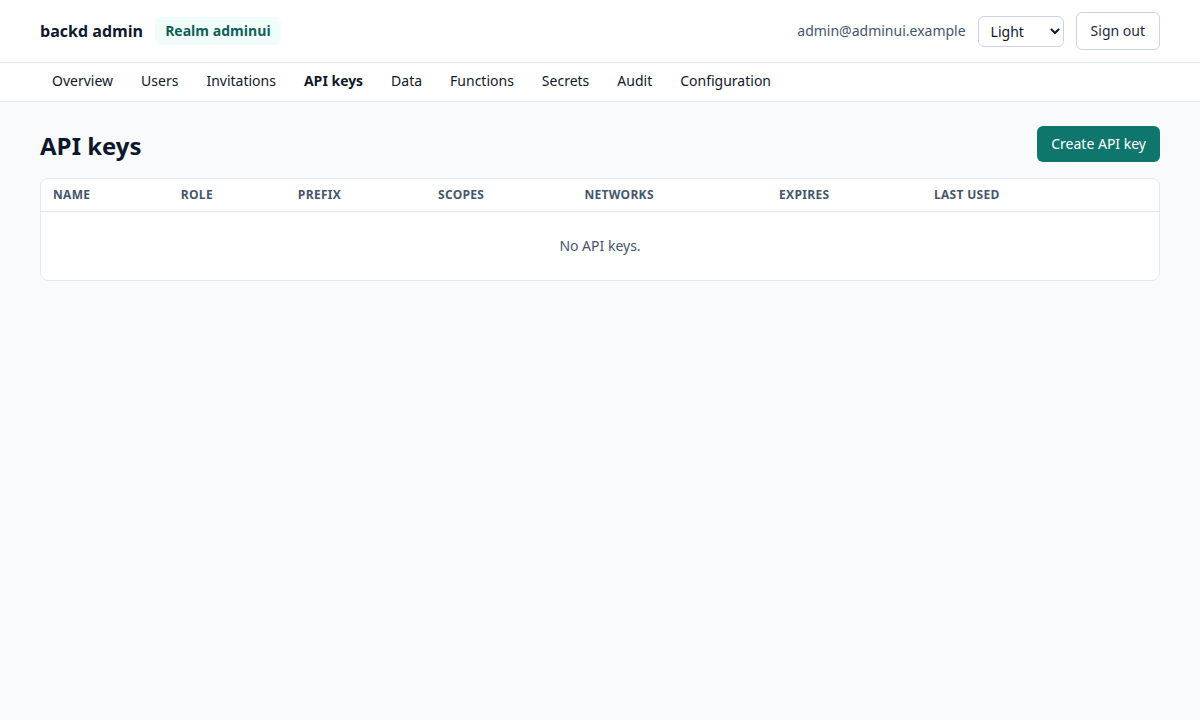
API keys lists every key with its role, prefix, scopes, networks, expiry and last use, never the key. Create API key takes a name, a role (data or admin), an optional expiry (90d, 12h), networks and scopes; the key is shown once, in a dialog, and is gone from the page when you close it. Revoke asks for the key’s name to be typed. An admin key can use the whole admin API, so create one only for a server you trust, and remember the escalation rules: you can’t hand out more than you hold.
Secrets lists the names, scopes (the realm or one database), when each was last set and by whom. Values are write-only, as in the API: the form takes a value, sends it and forgets it, and nothing in the interface can show it again. Setting a name again replaces the value; deleting asks for the name to be typed, and a function that declares the secret answers secret_missing until it is set again. Functions only see secrets when the instance has BACKD_SECRETS_KEY.
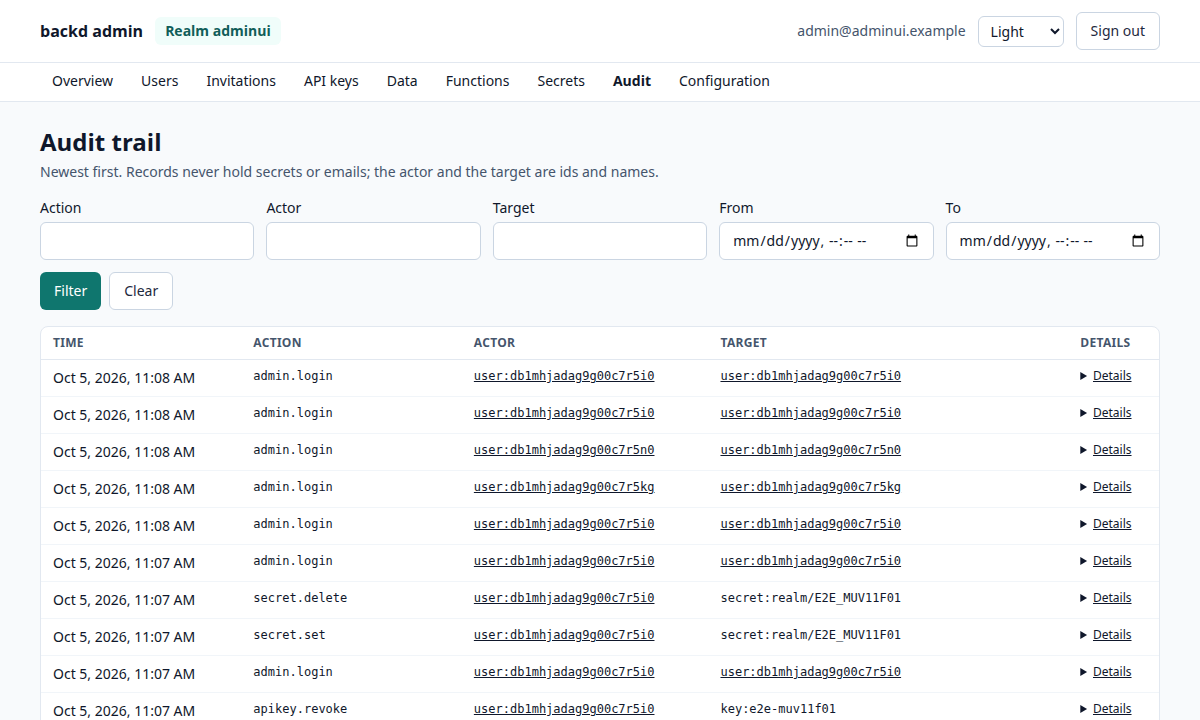
Audit shows the audit trail newest first, fifty records a page, filtered by action, actor, target and a time range. Each record’s details, request id and client address open under Details, as plain text; an actor or a target that is a user links to the user’s page when the level may read users.
A read-only level reads all three without the buttons that create, revoke, set or delete; a custom level that lacks an area doesn’t get its page at all.
Functions
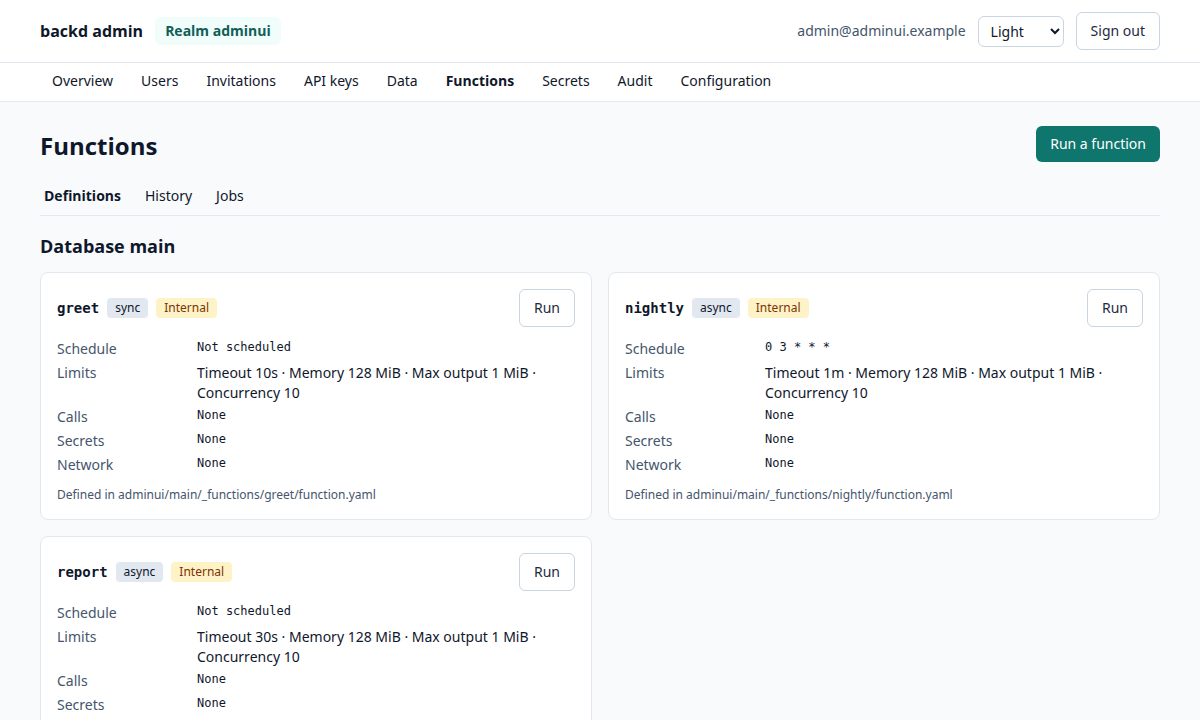
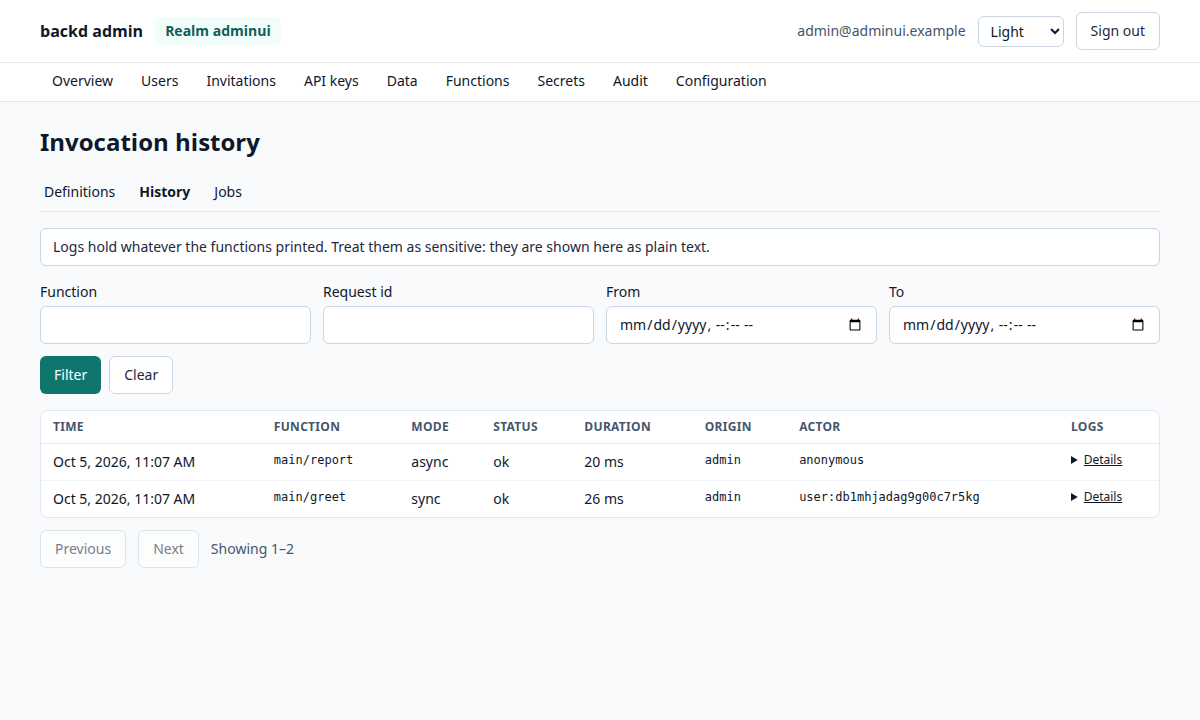
The Functions area has three pages.
- Definitions lists, per database, every function with its mode, schedule, flags (internal, admin only, email delivery, dev only), limits (timeout, memory, maximum output, concurrency),
calls,secretsandnetwork, retry and rate limit,invokerule, and thefunction.yamlit comes from. A scheduled function also shows its time zone, whether it skips overlapping runs and whether it is paused; with thefunctionswrite right, a Pause or Resume button changes that. It reads the realm’s configuration, so a level without theconfigarea sees a note instead. - History is the invocation history: when, which function, mode, status and code, duration, origin and actor, with the request id, job and parent invocation and the function’s log lines under Details. Logs hold whatever functions print, so the page says so and shows them as plain text only.
- Jobs lists async and scheduled jobs with their state, origin, attempts and result, filtered by function, status, origin, scheduled runs and time. Inputs and outputs of jobs are never listed. A job that reports steps shows the one it is at (
count 3/5); opening it lists every step, refreshed while the job runs, and the History details list a call’s steps.
An administrator with the functions area can run a function by hand, internal ones included: choose it, give an input as JSON and optionally an email to run as (without one there is no user). A sync function’s output is shown on the page; an async one answers with its job, which the Jobs page follows. The function’s invoke rule and rate limit don’t apply, and every run is audited. Read-only levels read all three pages and get no way to run anything.
On the Jobs page an administrator with the functions area can also cancel a job that is queued, retrying or running (it ends at once with the result cancelled, and a worker running it stops the run) and re-run a finished one, which queues a new job with the same function, input and caller and shows “Re-run of …” back to the original. See Cancelling and re-running a job.
Configuration
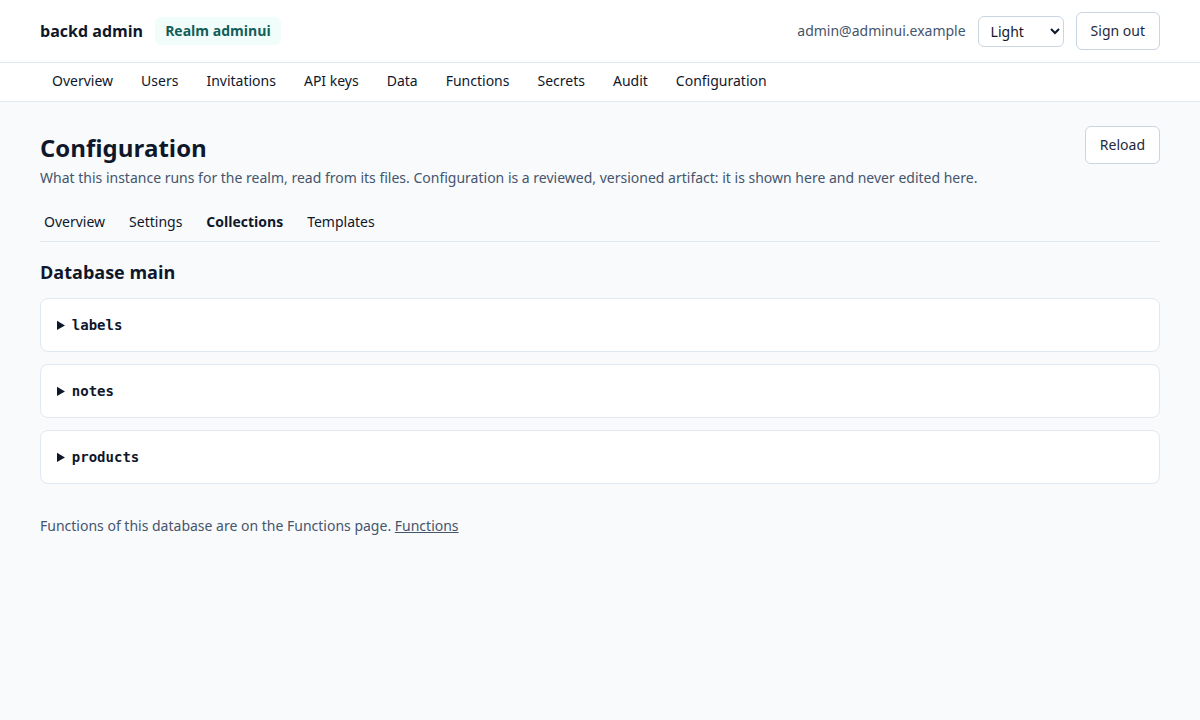
The Configuration area shows what this instance runs for the realm, read from the files it loaded through GET /_admin/config. It is read-only by design: configuration is a reviewed, versioned artifact, so the interface never edits it. Change the files, review and deploy them; Reload fetches what the instance runs now.
- Overview: the realm, its
realm.yamlfile, the config fingerprint (it changes whenever any configuration file changes, so comparing it across instances shows whether they run the same files) and the startup warnings (an admin API open to any network, open sign-up, no administrators and the like). - Settings: every realm setting with its default applied, one row per setting with its dotted path, and the roles with their description, admin access and seeded users. Secrets appear as names only, never values, and the seeded emails show only to a level that may read users.
- Collections: for each database and collection, the JSON Schema (in a scrollable block, however large), the indexes, each operation’s access rule and the
collection.yamlit is in, and the collection policy (soft delete, what happens when an owner is erased). Every item names its source file, relative to the configuration directory. - Preparing a change: under a collection’s schema and rules, Prepare a change to
schema.json(or tocollection.yaml, which holds the rules, the files and the erase policy: it starts from the file as written, comments included) opens an editor with what the server runs. As you edit, the server checks your changes against the realm’s whole configuration: it loads every file of the realm, as startup does, with your drafts in place of the ones on disk, and says All N files of the realm were checked with your changes and the configuration loads, or lists what would not load and in which file (a schema change can break a rule in another file, so all of them are read). Drafts in several editors are checked together. Download stays off while the draft is not valid JSON or the check fails; then save the file in your configuration repository and commit it. Nothing is applied: the check runs on a copy, the server’s configuration is never written through the interface, and backd reads configuration when it starts. Aschema.jsonleaves out the file fields backd injects fromfiles:(they are declared incollection.yaml); arules.yamlis rebuilt from the expressions the server runs, one key per rule, so the comments and layout of your own file are not in it: take the change into your copy. Function bundles are built bybackd functions buildand are not part of the check. Realm settings, indexes and policies have no editor yet. It needs only theconfigarea, so a read-only level can prepare files too. - Templates: the email templates and hosted pages found on disk, by kind and language.
The functions’ definitions are on the Functions page. Reading the configuration needs the config area, which every read-only level has.
Data
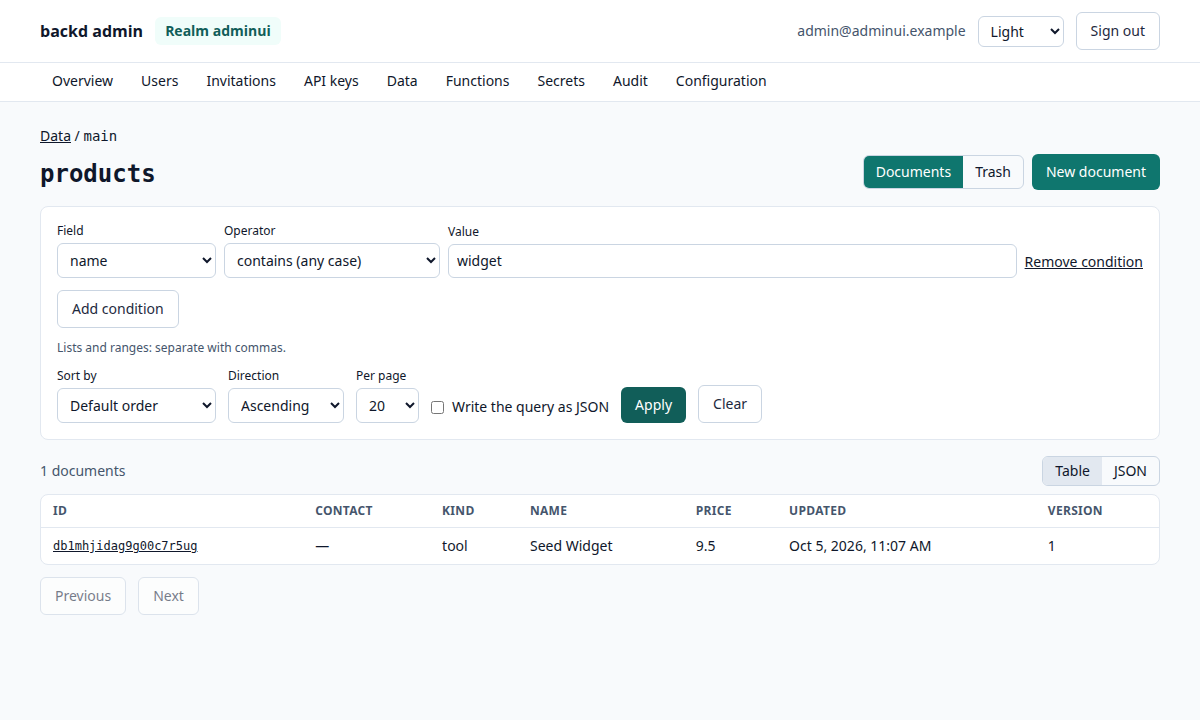
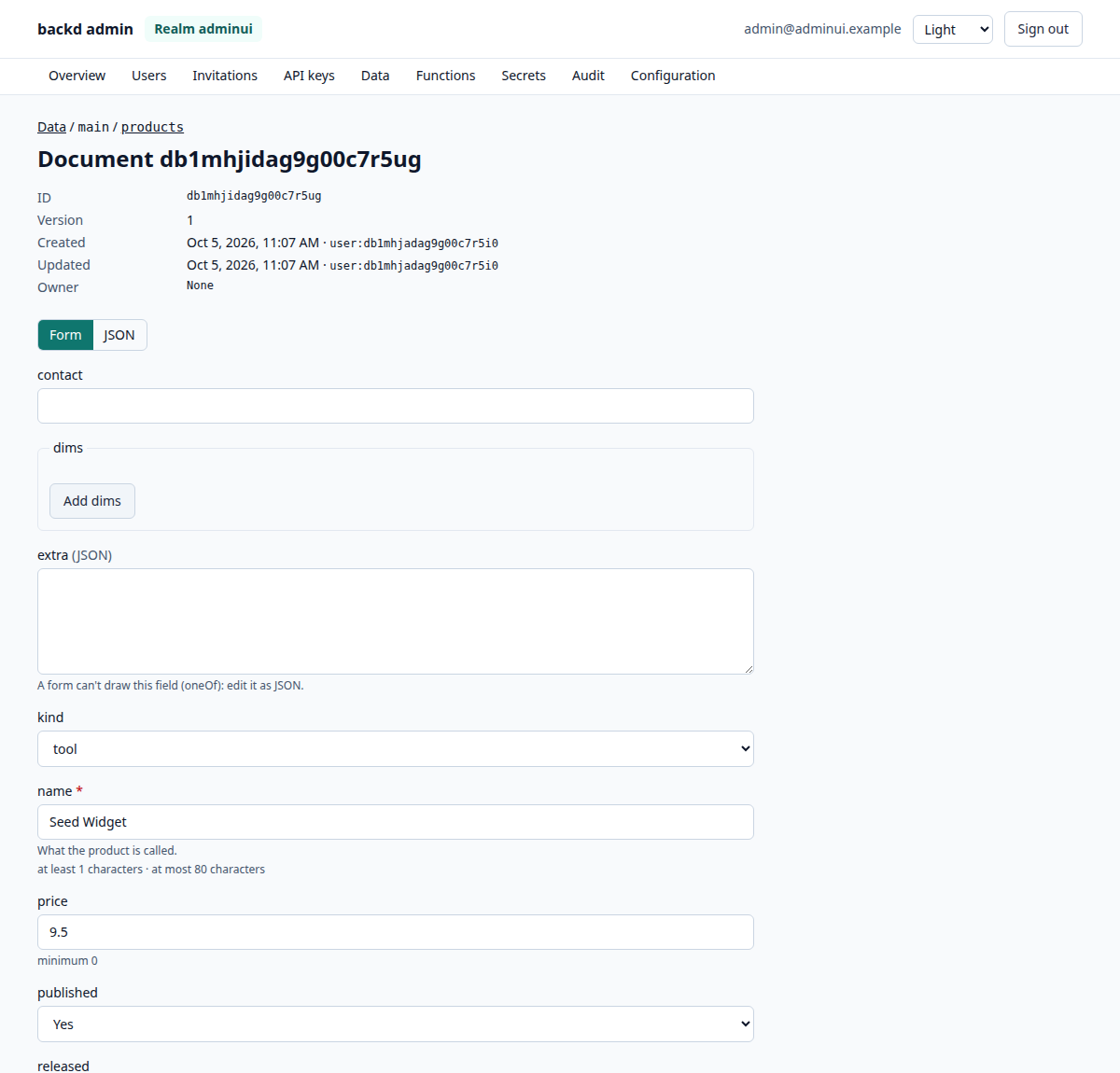
The Data area browses and fixes documents through the admin data route, which serves them past the collection’s access rules: an administrator sees and changes what an app’s own users couldn’t. Every change is audited (never its content), and a document created here has no owner.
Databases and collections come from the configuration (a level without the
configarea types the names). A collection that keeps a trash says so.Browsing: a table with the collection’s first scalar fields, the update time and version, paged (20, 50 or 100 a page) with the total, and a JSON view of the same page. The query builder offers the fields the schema declares (nested ones by dot path, plus
idand_meta), and for each type only the operators backd’s query language accepts: text operators for strings, comparisons and ranges for numbers and dates,is one offor enums. Values are checked in the browser (a number must be a number, a date a date) before anything is sent. Sorting is by any of those fields, and Raw where (JSON) takes the API’s own query language for anything the builder can’t say.Forms: creating and editing use a form drawn from the collection’s JSON Schema: objects, arrays (add, remove, reorder), strings with their formats (
email,date,date-time,uri) and length limits, numbers with their limits, booleans, enums, required markers and descriptions.idand_metaare shown, never edited. Fields appear in alphabetical order: the configuration API returns a schema’s properties sorted by name, not in the order the file declares them. Whatever a form can’t draw faithfully, such asoneOf,anyOf,if/then, a recursive$refor a free-form object, becomes a JSON editor for that field, and a schema that can’t be a form at all is edited as JSON as a whole. Fields the schema doesn’t declare are kept as they are. The server’s validation messages appear next to the field they are about, and in a list at the top.Concurrent edits: a save sends the version you read (
If-Match). If someone changed the document meanwhile, the page says so and offers the newer version to read; you can load it (dropping your edit) or keep your changes on top of it and save again.Schema check: a collection’s page has a Check documents against the schema button. It asks first and says that a check reads every document, so on a big collection it takes a long time and loads the database (with about how many documents when the page knows). The check runs in the background: the page shows its percentage with a Cancel button, and then the latest report, each invalid document’s id linking to it, whether it is in the trash, and the path and rule of its problems (never values). The Schema checks page lists every collection’s latest report and can check them all; one check runs at a time. See Finding documents that no longer match.
Deleting: it asks for the document’s id to be typed. In a collection with
soft_deletethe document goes to the trash: browse it with the Trash switch, Restore a document, or Delete for good (also typed). Elsewhere a delete is final.Files: a document of a collection with file fields has a Files section below its form (the form and the JSON tab leave those fields out: they are backd’s, and a save keeps them). Each field shows its limits (size, types, how many), what it holds with a preview of the images, and Download, Remove (it asks for the file’s name) and Upload controls. An upload goes through backd or straight to the bucket, as the field says, with a progress bar; every upload or removal is a change to the document (a new version, audited as
data.update) that your unsaved edits survive, and the field’s own refusals (too large, a type it doesn’t take, too many files) appear as they are. They use the admin data route’s_filesroutes, past the collection’s rules like the rest of the Data area.
A read-only level browses only when the realm’s admin.read_access.data allows it, and then every form is read-only with no button that changes anything: the files can be downloaded, not changed. Creating a document here can’t attach files, so a collection whose file field is required is created through the API (a pending upload) and its files managed here.
Storage
The Storage page (for realms with storage:) shows how the storage is connected (the provider, bucket and prefix, whether the keys are set and the bucket answers), the bytes and files in use against the realm’s quota with a meter, the users holding the most with their share of the per-user quota, and the clean-up queue (objects waiting to be deleted, uploads left unfinished). A banner appears when the realm or a user is at or near a limit. It needs the config area, which every read-only level has, and refreshes with a button.
Language and theme
The interface speaks English and Spanish. It follows the browser’s preferred languages (the first one it has a translation for, English otherwise) until you pick one with the language switch next to the theme switch; the choice is kept in this browser, and Automatic goes back to following it. Dates are written in the language shown. Light and dark themes follow the system and can be switched by hand.
What the interface shows from your system is not translated: messages the server sends (a validation error, a refused change), the names in your configuration, audit actions and function logs stay as they are. The word typed to confirm a destructive action is the one shown in the dialog, in the language shown.
Sessions
- The token lives in memory. Reloading or closing the page signs out, and the page revokes the session on the server as it goes, so nothing is left behind. Keep me signed in in this tab stores the session in the tab’s
sessionStorageinstead, so a reload keeps it; the UI never useslocalStoragefor it. Leave it off on shared computers. - Idle timeout. After
BACKD_ADMIN_UI_IDLEwithout a click, key press or scroll the UI signs out and revokes the session on the server, so a token someone copied stops working too. This timer lives in the page: the realm’ssessions.admin_idle_timeoutandsessions.admin_max_lifetimeare the limits the server enforces, so set both. - Sign out revokes. Sign out ends the session on the server, not only in the page.
- Administrator sessions only. API keys are never entered in a browser.
Security
The page is served with a strict Content-Security-Policy: scripts and styles only from /_ui/ itself, no unsafe-inline, no unsafe-eval, requests only to the same origin (connect-src 'self'; plus the origin of the realms’ file storage, the only other place the page loads images from or sends a direct upload to, for the previews and uploads of files; with no realm storage the policy has none), frame-ancestors 'none', and require-trusted-types-for 'script', which makes the browser refuse every way of turning text into markup, plus X-Content-Type-Options, X-Frame-Options, Referrer-Policy and the other usual headers. Hashed assets are cached for a year; index.html is never cached, so a new release reaches users at once. Everything the UI shows from your data (documents, log lines, file names, user agents) is rendered as text, never as markup, and the lint rule vue/no-v-html is an error. The Playwright suite fails on any CSP violation and on any request to another origin.
Security review
The interface and the endpoints added for it were reviewed before being recommended for production: the headers and the CSP, how the page renders data, how it holds the session, the data route’s audit, and what each level can do. The Playwright suite repeats the important checks on every run: no CSP violation, no request to another origin, the security headers on every /_ui/ response, and the server refusing every change from the read-only and custom levels, whatever the interface offers.
A few behaviours are worth knowing when you decide how to run it.
The token and the idle timeout. The administrator’s token lives in the page’s memory. If the page closes or reloads, the token is gone, so the page ends the session on the server as it leaves instead of leaving it to expire. While the page stays open, the session ends after BACKD_ADMIN_UI_IDLE of inactivity, and the page revokes it on the server too. That timer runs in the page. The limits the server enforces are the realm’s sessions.admin_idle_timeout and admin_max_lifetime, so set those as well. A tab that opted in to keep me signed in stores its token in sessionStorage instead, so a reload keeps the session. Such a tab can’t tell a reload from a close, so after a close the session lives until the server’s idle timeout or maximum lifetime.
Reads are not in the audit trail. Writes through the data route are audited (data.create, data.update, data.delete, data.restore, data.purge) with the actor and the target, never the content. Reading documents, users or logs in the interface leaves no audit record; the actor appears in the access log. If you need to know who looked at personal data, keep that log, and grant admin.read_access.users and .data only to those who need them.
What the review can’t remove.
- The token is readable by any script that runs in the page. The strict CSP, Trusted Types, the lint rule against
v-htmland the absence of markup sinks make that hard, but a flaw in a dependency would be enough. That is why admin sessions should be short. sessionStorageis per origin. Another web app served from the same origin as the UI, with a script injection of its own, could read a token kept in the tab. Serve the UI on its own origin, such as an internal admin host.- The development tools’
npm auditreports a denial-of-service in a glob library with no fix available. It runs at build time on our own files and never ships, so CI gates on the dependencies that ship in the bundle.
Public and internal instances
What isn’t served can’t be attacked. Serve the UI from the instance that has the admin API, and keep that instance off the public internet or behind the network restrictions of Production deployment:
- the public
backd:BACKD_ADMIN_API=false, noBACKD_ADMIN_UI: it serves neither/_adminnor/_ui/; - the internal
backd-admin:BACKD_ADMIN_API=trueandBACKD_ADMIN_UI=true, reachable only from the networks that administer the realm.
The UI talks to the origin it was loaded from, so the reverse proxy in front of the internal instance sends both /_ui/ and /v1/ to it.
Static hosting
Every release also attaches the same build as admin-ui_vX.Y.Z.tar.gz, for serving from a web server of your own instead of from backd. Serve it under /_ui/ of an origin that also proxies /v1/ to the instance with the admin API, and add the security headers above yourself: the interface calls only its own origin.
Trying it locally
make example serves the interface at https://localhost:8443/_ui/. The adminui realm has one user for each level (admin@adminui.example, viewer@adminui.example and support@adminui.example); they gain their roles when they sign up, with the development password dev-p4ssw0rd!.